App Icon
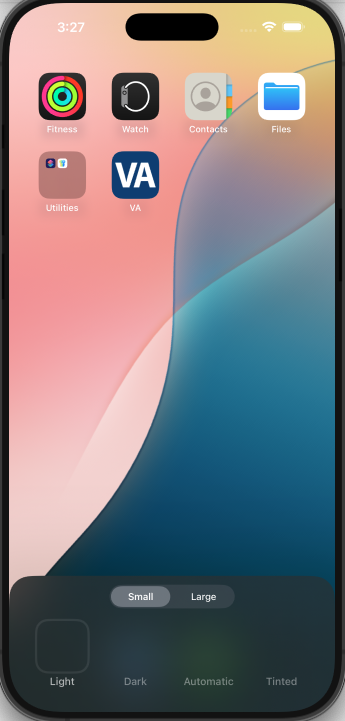
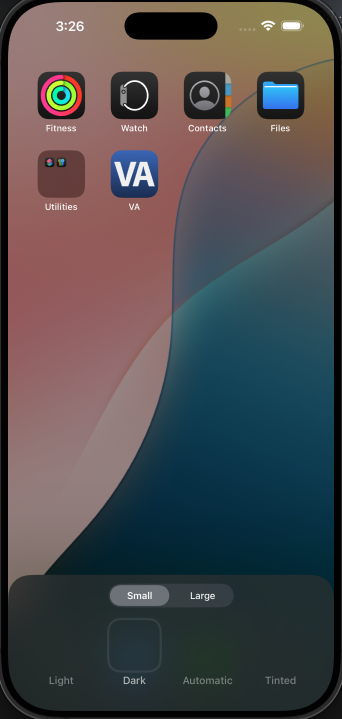
App icons represent your app in places such as the App Store, the Home Screen, Settings, and search results.
iOS Configuration
To display your app icon correctly across iOS devices, you must provide the required icon assets and configure them in your Xcode project. iOS uses different icon sizes for various contexts, such as the Home Screen, Spotlight search, Settings, and notifications.
Context
In Xcode, under VAMobile, navigate to the General tab to view the app icons configured for each environment.
Within the App Icons and Launch Screen section, we can see that the following icon sets are currently in use: AppIcon, AppIcon-QA, and AppIcon-RC.

Updating App Icons
- To update app icons, open up XCode and navigate to the
VAMobile/Imagesdirectory.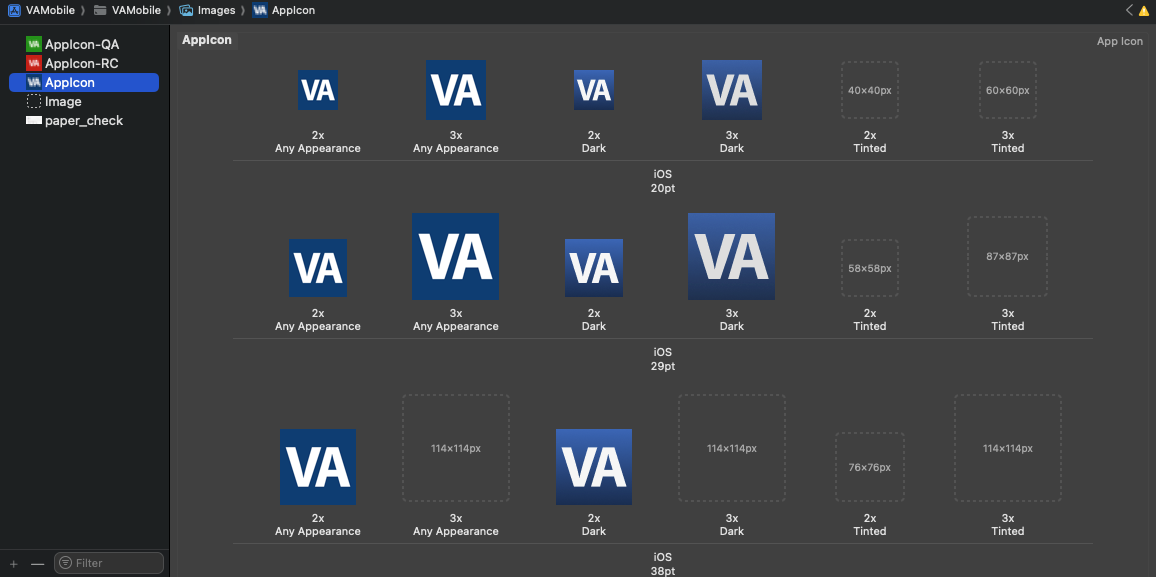
- Currently,
Any AppearanceandDark Modeare supported. If modifications are needed, all the size variations of the updated icon would need to be met. To update or replace an icon, drag apngto the desired location in this layout.
Testing
- To begin testing changes, rebuild the application on Xcode.
- Navigate outside the app to the home page of the simulator.
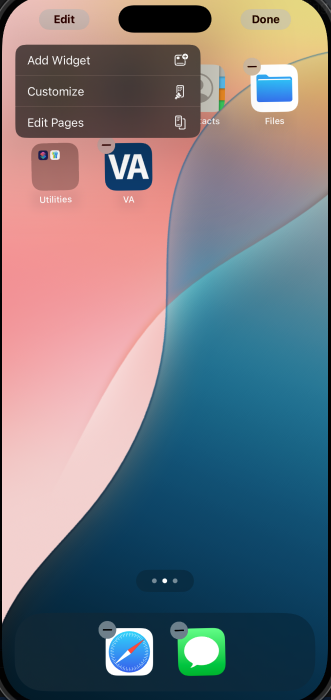
- Long press the screen until an
Editoption appears on the top left of the screen.
-
Click on
Customize. Here you are able to see the different themes. -
Select among the different themes to view the results.
Light Dark